Installing the RetentionEngine Code Snippet
The final step to integrating the RetentionEngine and ReCharge paste the RetentionEngine Code Snippet onto your Shopify store theme.
Step 1: Locating the Code Snippet
The Code Snippet is located in the RetentionEngine dashboard under the "Settings" tab.
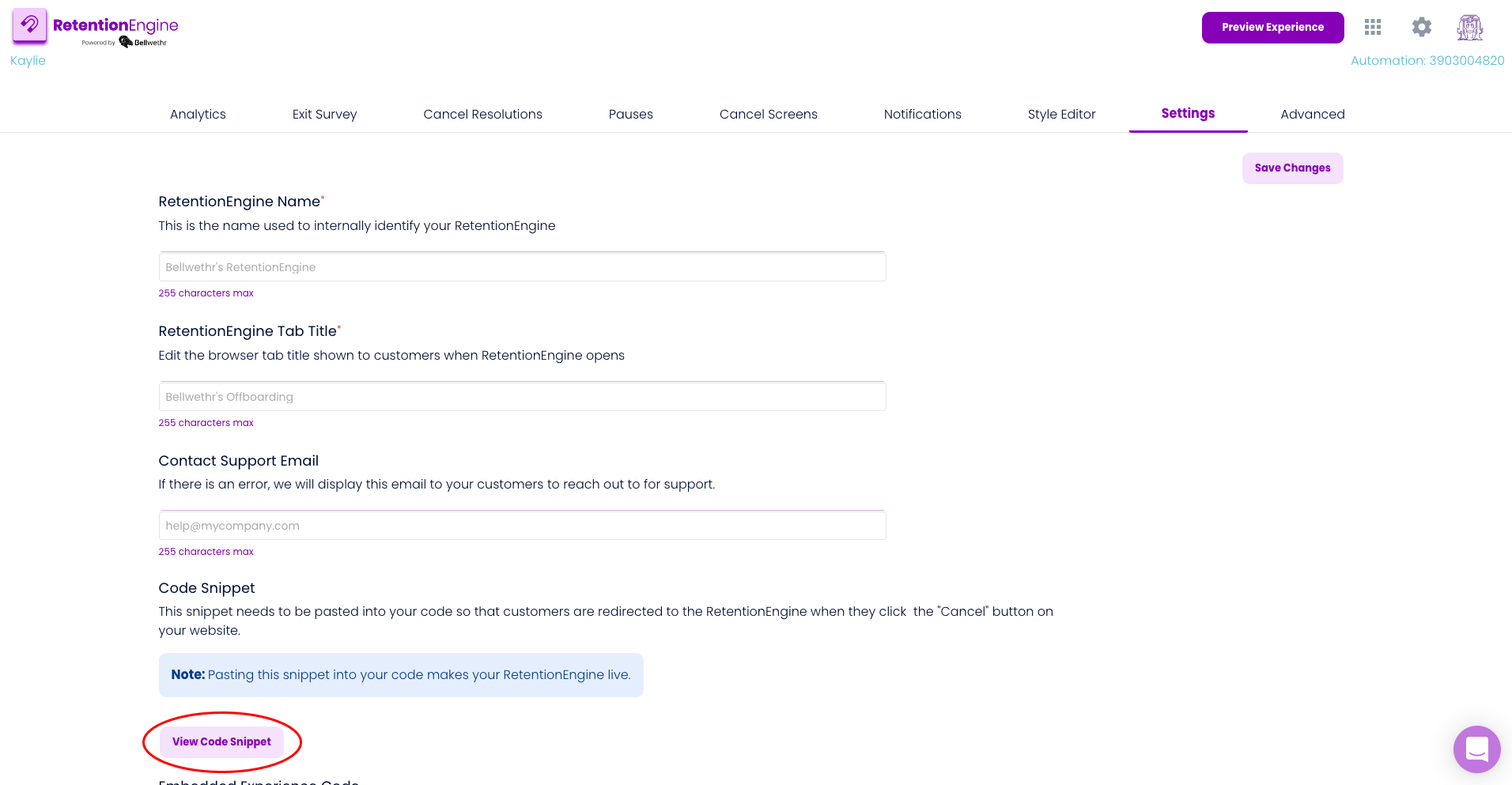
Once you've copied the Code Snippet, you'll be able to paste it into your application using the next set of instructions.
Step 2: Paste the Code Snippet
- Log into your Shopify admin panel. Once there, you should click on the "Online Store" tab in the left menu.

2. Select "Themes" in the left menu under "Online Store"
3. On your Live Theme, select the "Actions" dropdown and select "Edit Code"

4. Under "Layout" select the "theme.liquid" section (see screenshot).
.png)
5. Paste the code snippet in this section. Make sure it's above the `</body>` and the`</html>` tags (see screenshot).
.png)
Hit "Save" once you're done!
Need extra help?
If you're having trouble and use Shopify, we can take care of this last step for you! Add a Bellwethr team member as a Shopify partner that has only permission to edit the theme, which will allow us to safely edit your Shopify site without revealing any sensitive information about your business.
Team Member to Add: Tapiwa Mapfundematsva, tapiwa@bellwethr.com.
Team Member to Add: Tapiwa Mapfundematsva, tapiwa@bellwethr.com.
Troubleshooting
Still not live? Check Your ReCharge Customer Portal Settings
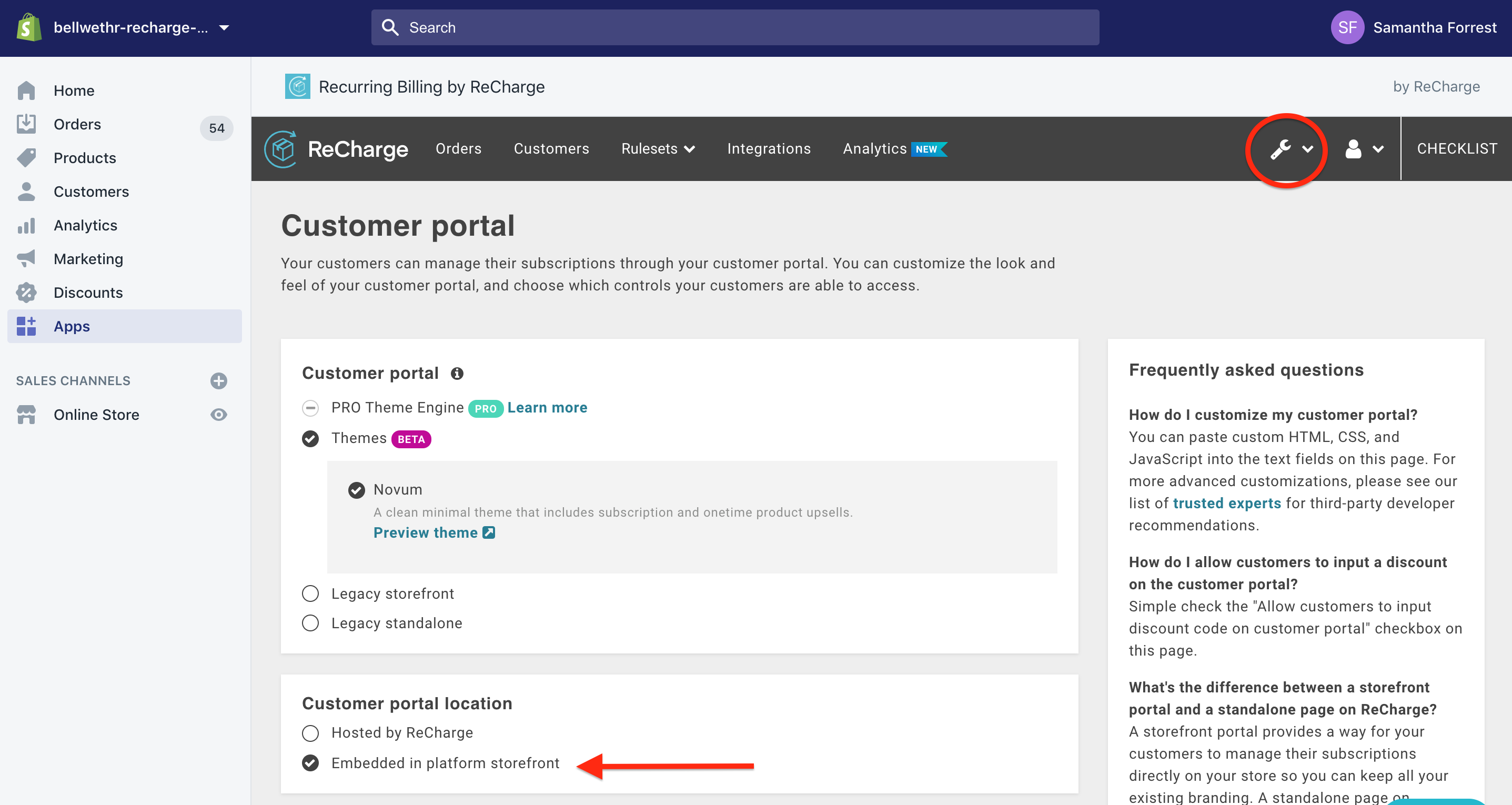
If you've pasted the code snippet, but RetentionEngine is not live on your site, it may be because of your Customer Portal Settings. Here's how to check/update your ReCharge Customer Portal settings:
- Click on the tool icon and choose "Customer portal".
- Select "Embedded in platform storefront" under customer portal location.
- Scroll down and click "Save".
Are you on ReCharge Pro?
If you're on Recharge Pro:
Send a message to support@bellwethr.com or reach out to us via chat. We need to make a slight adjustment to the code snippet to ensure that it works for your storefront.